Logging into AFAS Online for the first time using two-factor authentication.
You need a new password for the new sign-on method using two-factor authorisation. You will create this password in this step. It is easiest, but not compulsory, to immediately download AFAS Pocket afterwards and to link it.
Note:
If you cannot carry out these steps, read the separate explanation about the activation email.
This page does not apply with regard to single sign-on. The Profit administrator in your organisation will specify how you need to sign on with regard to single sign-on (SSO).
|
Contents |
Preparations
- You use a supported browser.
See also:
Logging in
- Go to www.afasonline.nl.
The sign-on screen will be displayed.
- Enter your email address.
Use the email address that the Profit administrator has recorded in your organisation. This is usually your business email address. If you do not know which email address you should use, contact the Profit administrator.
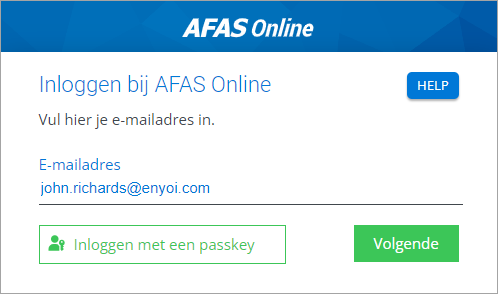
- Click Next.
- A message will be displayed that you have never signed on before.
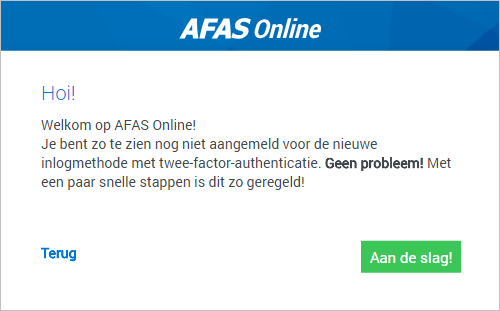
- Click Get started.
- You will receive an email message that will include a code. If you have not received the message, see the FAQ.
- Enter the code on the portal page.
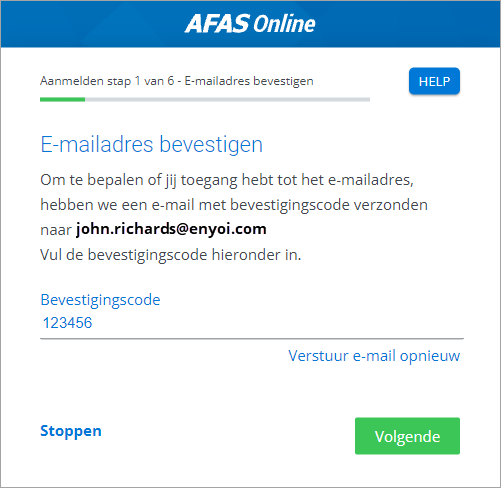
- Click Next.
- Enter a strong password.
 Which requirements must the password meet?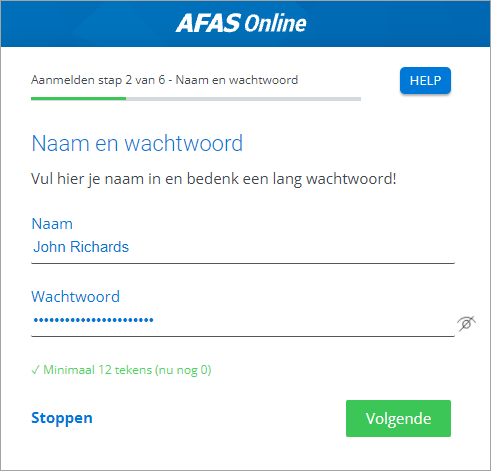
- Click Next.
- Enter your telephone number if it is not automatically displayed. If you enter a number yourself, this will not be recorded in Profit.
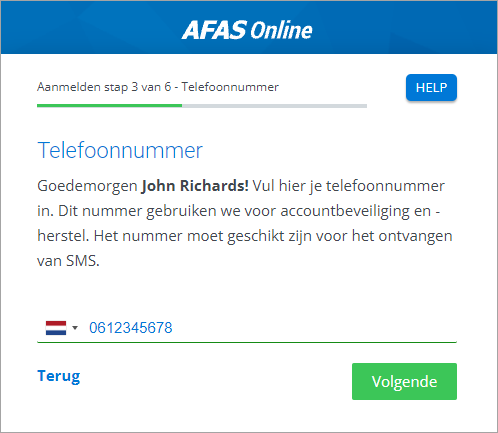
- Click Next.
- Confirm the text message code that you will receive through your telephone.
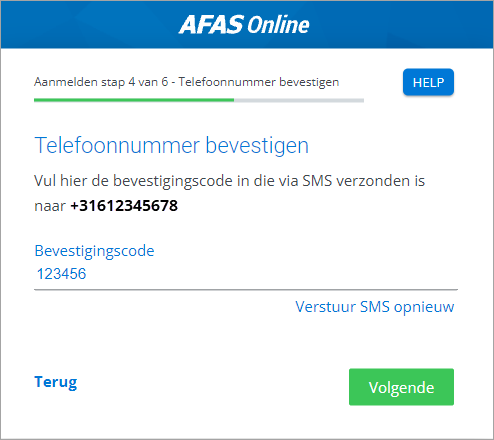
Setting up two-factor authentication
As from now, you will always log into AFAS Online through two-factor authentication. You are going to set this up now.
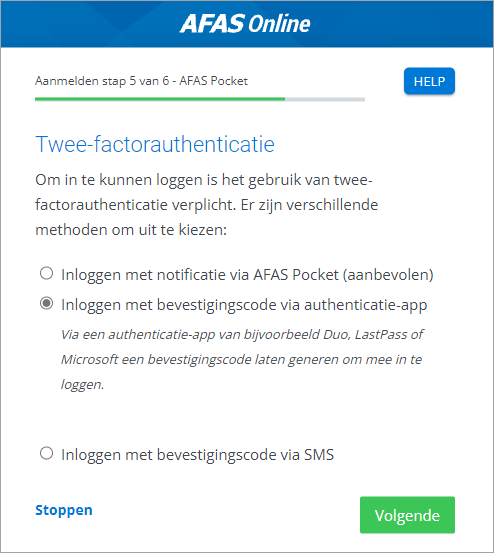
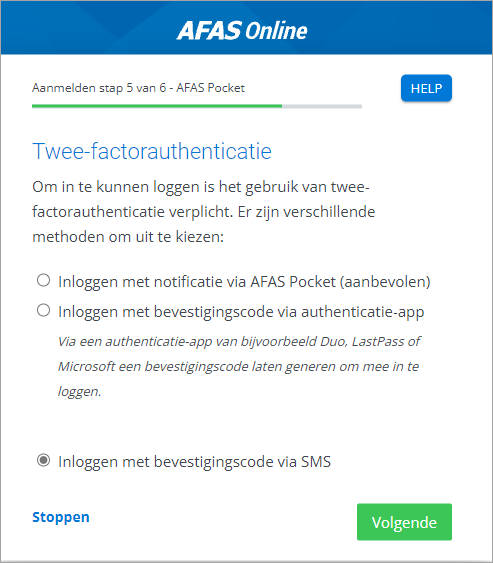
- Make your selection on the following screen.
Note:
We recommend confirming through AFAS Pocket. This means that you can complete the login process at the touch of a button. With other methods, you always have to enter a code.
The explanation below is focused on AFAS Pocket, followed by an explanation of other methods.
- Select Log in through a notification through AFAS Pocket (recommended)
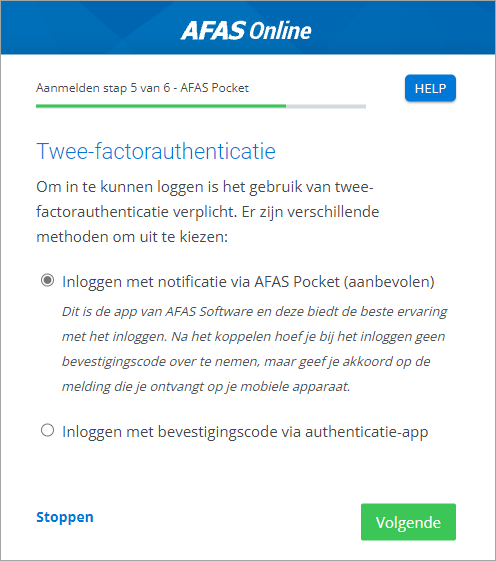
- Click: Next.
- Download and install the AFAS Pocket app on your phone if you have not done so already.
- Click: Next.
- Press I have a QR code in AFAS Pocket if you want to link your phone using AFAS Pocket.
- Give your permission to use the camera and scan the QR code
- If you have correctly scanned the code, a message will be displayed stating that your AFAS Online account has been linked to AFAS Pocket.
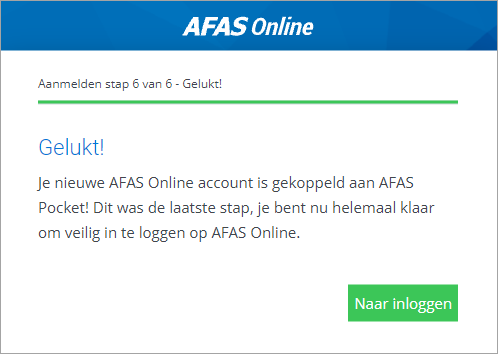
- Click To login and continue with these steps.
Do you want to link another account to AFAS Pocket? No problem!
- Open AFAS Pocket.
- Tap the shield at the top. If this is not shown, go to Settings/Two-factor authentication.
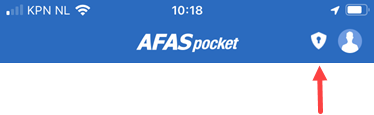
- Click +
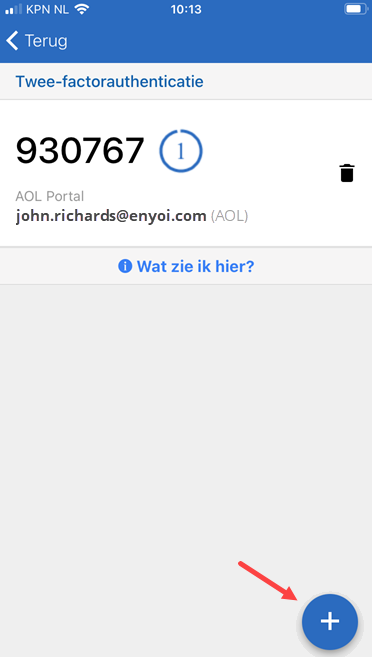
- Scan the QR code.
Other methods:
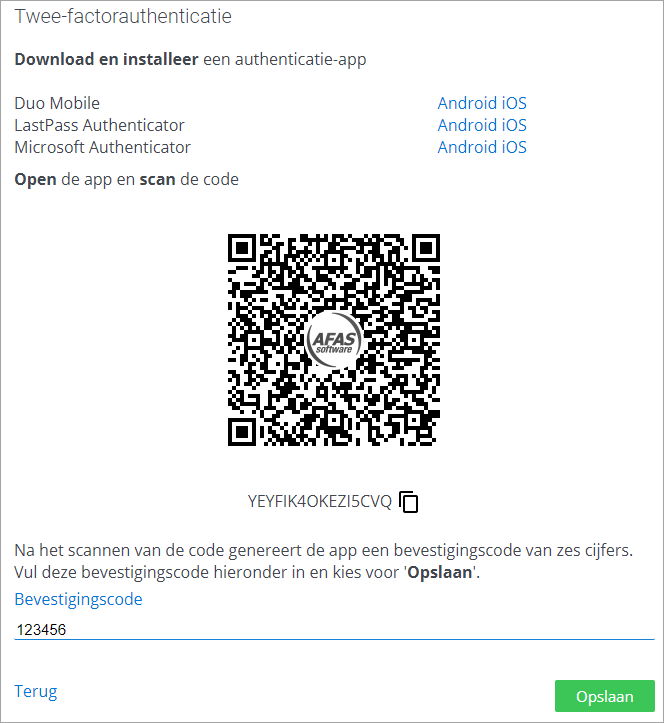
Log in through a confirmation code through the authenticator app