Authorise the Profit Communication Center
You authorise functions for administrative purposes, the access to dossier item types and the use of analyses.
|
Contents |
Authorise management
In the environment, you authorise the parts listed below that you use in combination with the Profit Communication Center.
Authorisation of the CLE (for a local installation only)
- Access to General / Environment / Central environment / Properties, PCC settings tab.
To authorise PCC administrators:
- Open the environment that you want to use in combination with the PCC. If you have multiple environments, you perform the below steps per environment.
- Go to: General / Management / Authorisation tool.
- Go to the tab: Group maintenance.
- Select the user group with application administrators.
- Go to the tab: Menu.
- Select the check box for the menu options to be authorised:
- General / Management / App connector
- Go to the tab: Authorisation.
- Go to: General / Management / App connector
- Authorise the tabs:
- General
- User tokens
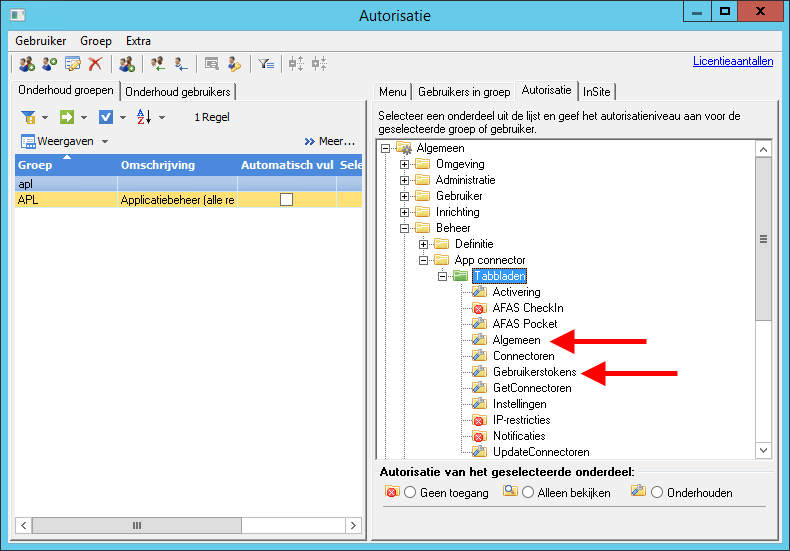
To authorise users:
You authorise the users who are allowed to install the PCC and link it to an environment. These steps are only required if users download the PCC using Profit Windows.
- Go to the tab: Group maintenance.
- Select a user group, for example the Everybody group.
- Go to the tab: Menu.
- Select the check box for the menu options to be authorised:
- General / User / Communication Center / Save installation
- General / User / Communication Center / Save settings
To record the e-mail address per user:
The administrator must record an e-mail address per user. This step is required technically in order to use the app connectors. This step has been dropped as from Update 2016.2.04. For a local installation, you must have also installed the combined patch for the PCC.
- Go to: General / Management / Authorisation tool.
- Go to the tab: User maintenance.
- Open the properties of the user.
- Go to the tab: General.
- Enter the e-mail address.
Authorise InSite pages
By default, all InSite users have access to the Communication Center InSite page. This is the page where users can download the Setup file, display the My files view and perform analyses. If this is the desired situation, you do not have to perform the steps below.
As of Update 2016.2.06, you can authorise the entire Communication Center page. Two functionalities are available:
- Profit Communication Center (klant)
This has the default login level Access for users logged in. This provides all users access to the Communication Center page after switching to Update 6. If that is not what you want, you can delete this functionality and link the default Profit Communication Center functionality to the appropriate roles.
- Profit Communication Center
Default functionality based on roles.
You can also authorise the following overviews separately on the Communication Center page:
- My analyses to be started
- My files (available in AFAS Online only)
To authorise the PCC:
 Method 1: template environment
Method 2: authorisation via roles
Authorise dossier items
If you submit a Microsoft-Office document using the Profit Communication Center, a dossier item is automatically created.
For this purpose, you need to configure the dossier item type, the site and the authorisation.
See also:
Authorise analyses
The Profit Communication Center (PCC) provides access to analyses. In this case, definition authorisation applies.
If you start using the PCC without recording the definition authorisation, all users with access to InSite also have access to all analyses. Therefore, first record the definition authorisation.
See also:
|
Directly to |