Change or cancel the ING bank link (AFAS Online)
You manage the settings of the bank link with AFAS Online per bank account number from 'Mijn ING Zakelijk' internet banking. You can view, change or cancel the settings of the bank link per bank account number from 'Mijn ING Zakelijk'. You cancel the bank link if you decide to stop with the automatic exchange of bank statements with AFAS Online.
If you are no longer an AFAS customer and are no longer using Profit, use the second procedure to delete the link with the bank via Mijn ING Zakelijk yourself. You do not have to log on to the portal of the accounting partner (AFAS Online) to do this.
|
Contents |
Change or cancel the ING bank link (AFAS Online)
To change or cancel the ING bank link:
- You follow the same steps as for registering the bank integration with the ING.
- Log on to Mijn ING Zakelijk.
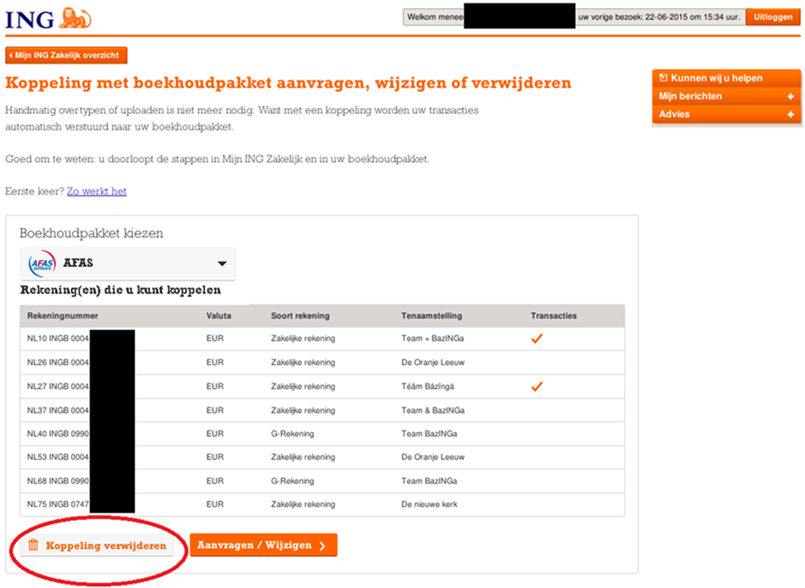
- Click on: Koppeling Boekhoudpakket for Gegevens en instellingen.
You can view or change the settings and mandates of the link per bank account number. If you want to change the settings, you are redirected from 'Mijn ING Zakelijk' to the AFAS Online Portal. A web page opens that asks you to log on using your AFAS Online user name and password.
Log on to this web page. For example: AOL\12345.user and the password you use to log on to the Profit package.
If you do not have this data or have forgotten it, please contact the administrator of your AFAS Online environment or the AFAS support centre via the Customer Portal.
The ‘Instellingen bankintegratie Mijn ING Zakelijk' displays the settings as they are received by AFAS from the ING.
- Click on: Wijzigen and in AFAS Online specify the settings for the bank integration per bank account number.
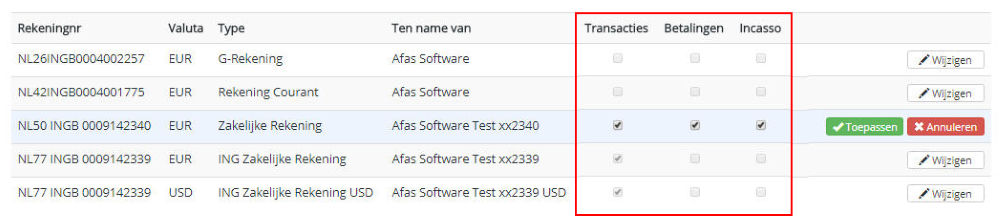
- Select or deselect the Transacties check box per bank account number.
Deselect the Transacties check box if you decide to stop with the automatic exchange of bank statements.
- After this, follow the same steps as for the registration of the ING bank integration except for the steps with the activation code in your environment (steps 15 - 20). You do not have to do this for a cancellation.
 Click here for more information and the steps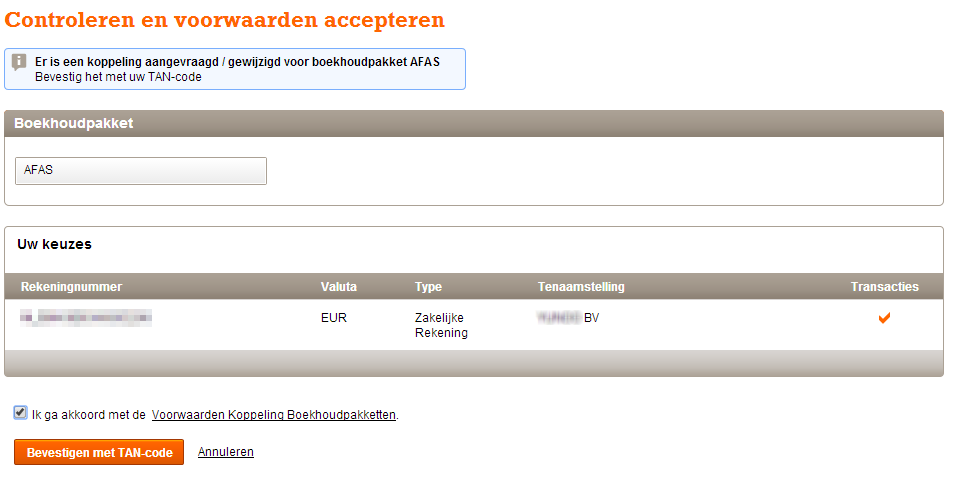
Delete the ING bank link via the ING site if no longer an AFAS customer
If you are no longer an AFAS customer and are no longer using Profit, use the second procedure to delete the link with the bank via Mijn ING Zakelijk yourself.
To delete the ING bank link if you are no longer an AFAS customer:
- Log on to Mijn ING Zakelijk.
- Click on: Koppeling Boekhoudpakket for Gegevens en instellingen.
- Click on: Koppeling verwijderen.