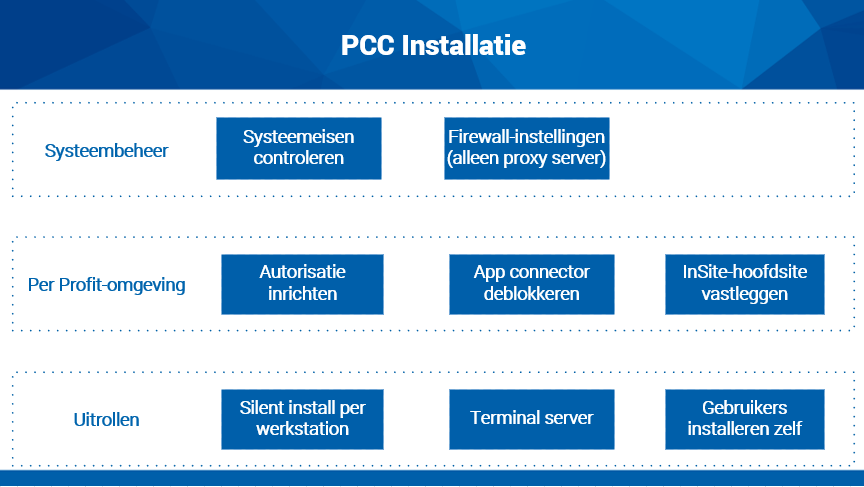
Profit Communication Center installation procedure for an administrator

The administrator uses Profit Windows to perform the configuration per environment.

For a local Profit installation, the administrator configures the Central Login Environment. AFAS Online customers can skip this step.

Content

  • Description
  • Procedure
  • Also see

Description

You need to specify whether the Profit Communication Center should be made available on a terminal server or per work station:

  • Work station

    Users install the PCC on their workstations. They then download the settings file and run it, which links the PCC to the environment. In the settings, they record which components of the PCC they want to use.

    The administrator can also install the PCC on the workstation, for example using a 'silent install'. In that case, the PCC is available for the users, but they still have to link it to an environment. They download the settings file and run it, which links the PCC to the environment. In the settings, they record which components of the PCC they want to use.

  • Terminal server

    The administrator installs the Profit Communication Center on the terminal server. By default, the Profit Communication Center is now available for each user.

    In that case, the PCC is available for the users, but they still have to link it to an environment. They download the settings file and run it, which links the PCC to the environment. In the settings, they record which components of the PCC they want to use.

Procedure

  • Check system requirements
  • Firewall settings for Profit Communication Center (proxy in combination with AFAS Online)
  • Authorise functionality
  • Unblock the app connector
  • Record the InSite main site
  • Manage tokens

Also see

  • Install the Profit Communication Center on Terminal Server

    Installation on a terminal server is not supported by AFAS, we mention the following for your information.

    An administrator can install the Profit Communication Centre (PCC) on a terminal server so that all users can use the PCC via the terminal server. Users do not need to install the PCC. However, each each user must log in to the terminal server and download and run their personal settings.

    Installing an update:

    In case of a new Profit Version, you must reinstall the PCC. It is not required to first uninstall the old PCC (corresponding to the previous Update).

    The administrator installs the PCC on the terminal server. The user settings of the old installation are automatically taken over, users do not need to reconnect the environment(s).

    Note:

    The administrator does not have to adjust the Profit configuration.

    Wait until your environments have been converted to the next version. Once this has been done, all users install the PCC (see the method below).

    1. Log on to the terminal server.
    2. If a new installation has been found, you can update this automatically. If automatic updating is disabled or does not work for some other reason, use the following steps:
      1. Go to: General / User / Communication Center / Save installation.
      2. Run the PccSetup installation file (for all users).
      3. Make sure, that the PCC is started automatically when a user logs in to the terminal server.

    New installation for administrator and users:

    Use this procedure if you have not yet installed the PCC on the terminal server.

    The administrator installs the PCC. Each user must download and install their own settings.

    Installation on terminal server by administrator:

    1. Log on to the terminal server.
    2. Go to: General / User / Communication Center / Save installation.
    3. Run the PccSetup installation file (for all users).
    4. Make sure, that the PCC is started automatically when a user logs in to the terminal server.

    Installation for each user:

    1. The user logs in to the terminal server.
    2. Open the environment you want to use in conjunction with the PCC.
    3. Go to: General / User / Communication Center / Save settings.
    4. Save the file.
    5. Run the Settings.poci file.

    Create shortcut per user:

    1. When a user logs in to the terminal server, Profit Communication Center will be started automatically. If this is not desired, create a shortcut per user.
    2. Log in to the terminal server as administrator.
    3. Open the folder:

      C:\ProgramData\Microsoft\Windows\Start Menu\Programs\Startup.

    4. Delete the Profit Communication Center shortcut. This will no longer automatically load the Profit Communication Center per user.
    5. For each user where Profit Communication Center does need to be started automatically, include a shortcut in the following folder:

      C:\Users\[gebruikersnaam]\AppData\Roaming\Microsoft\Windows\Start Menu\Programs\Startup.

      This shortcut should point to the following file:

      C:\Program Files (x86)\AFAS Software\Profit Communication Center\Profit communication center.exe

  • Silent installation of Profit Communication Center on workstations
  • Configure a dossier for InSite

    To be able to submit dossier items via InSite, some additional configuration is required.