Edit and save an analysis
You open an existing analysis to edit it. Check the schema if you have not yet done so.
To open the analysis:
- Go to:
- General / Output / Management / Analysis (all analyses)
- CRM / Output / Management / Analysis
- Financial / Output / Management / Analysis
- Fiscal / Output / Management / Analysis
- HR / Output / Management / HRM analysis
- HR / Output / Management / Payroll analysis
- Order Management / Output / Management / Analysis
- Double-click on the analysis.
- Open the analysis with the Design button, or with Next / Finish.
- On a local installation, you can directly edit the analysis.
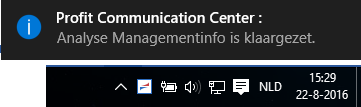
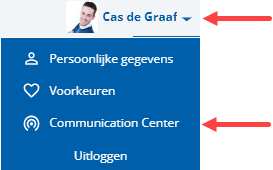
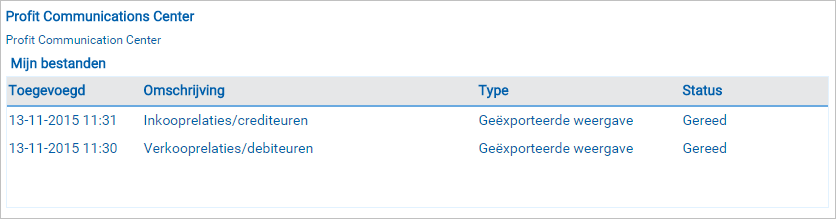
- In AFAS Online, you open the analysis in one of the following ways:
 Open an analysis with one mouse click on a notificationOpen an analysis using Profit Windows
If you cannot open the analysis or if messages appear, please refer to the Preparations and Frequently asked questions topics.
To save an analysis (AFAS Online / local installation):
- Go to: PROFIT ANALYSE / Save in Profit.

The For exchange with third parties option is only relevant if you want to export an analysis and then import it in another environment.