Create a menu item for sales contacts/debtors in InSite
You add the Financial menu item to the site. On this portal page, you automatically have the data for Debtors and Creditors.
To create a menu item at a higher level:
You create a menu item at a higher level, for example Financial or Logistics, to include the Debtors overview there.
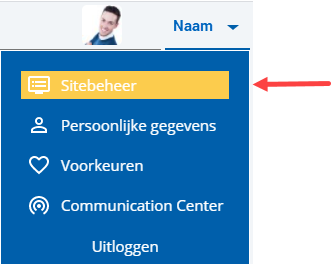
 Log on and start Site management.
- Click on: New.
You do this at the position in the menu where you want to add a menu item.
- Enter the description.
It is Financial in this example. It can also be Logistics or Subscriptions.
- Select Refer to existing page.
- Click on: Next.
- Select the Relations (Organisation/person) portal page in Page.
To add the debtors overview to the menu:
- Click on: Add.
- Click on: Menu.

- Click on: New after the menu. In this example, the Financieel menu.
- Enter Debiteuren as the description.
- Select the Refer to existing page action.
- Click on: Next.
- Select the Debtors overview for Page.
- Click on: Add.
- Open the properties of the Debiteuren menu item.
- Deselect the Show in menu check box.
- Click on: Modify.
- Close the menu.
|
Directly to
|