Start InSite
You can log on automatically in InSite with Windows credentials. If you use these, you will not be able to log off.
More information:  How can I log on to InSite with a log-on prompt when Windows authentication is used?
To launch InSite as an employee:
- Start the browser, for example Microsoft Internet Explorer.
- Go to: the address of the InSite site.
- Click on: Log on.
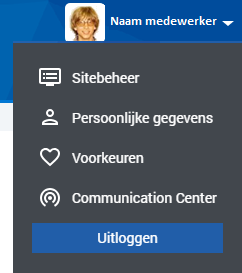
To log off an InSite site:
- Click on: the arrow after the name of the user.
- Click on: Log off.
Remember password
If you select Remember my details, you will be logged on automatically in the future when you start the InSite site. This setting is only available if the administrator has not disabled this.
If the user decides to have the log-on details remembered, a cookie will be saved in the browser. This cookie will be deleted in the following situations:
- The user logs off from the InSite site.
- The user deletes the browser history. This can be a manual action or it takes place automatically, for example when closing the browser.
|
Directly to |