Configure an organisation chart

The organisation chart is a representation of your organisation structure in a diagram. From top to bottom it consists (for example) of the management, various departments and teams. The organisation chart shows the connections and authority relationships between these business units. The layout of the organisation chart is important for the execution of business processes using alerts and workflows and for the authorisation.

Description

In Profit two concepts are key:

  • Organisational unit (OU)

    The components of the organisation, for example Management, ICT department, Purchase department, Sales department, Internal sales team, Sales field organisation, etc.

  • Organisational unit type (OUT)

    You use this to arrange an organisation chart in layers. Every organisational unit in Profit is linked to an organisational unit type.

    An organisation chart in Profit can have up to 10 layers (numbered 0 to 9). Layer 0 is the top layer.

You build the organisation chart by placing organisational units in a diagram, as in the image below. The image also displays the department employees. The link between an employee and his organisational unit is established in the employee's job line. For example, if an employee is transferred to another department, you need to specify a new job line for the employee.
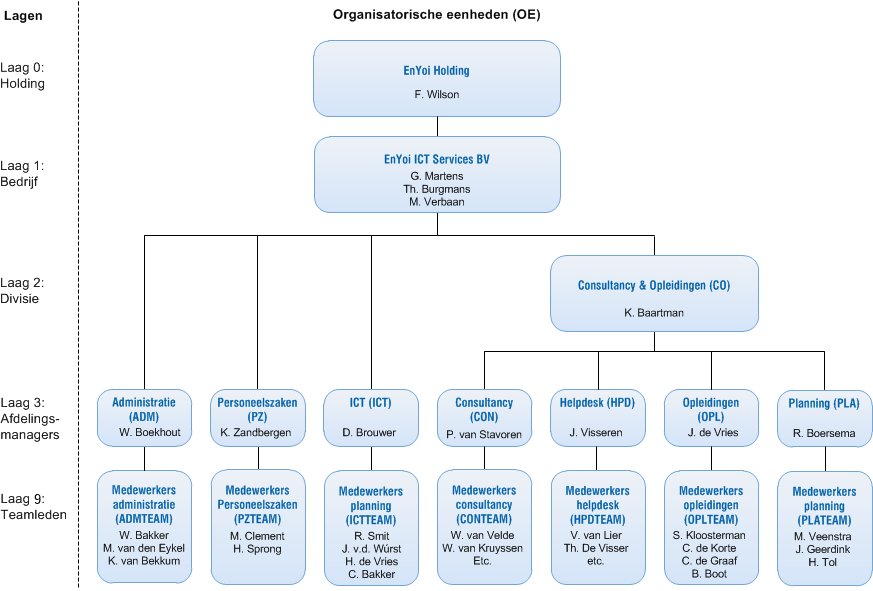
The top layer in an organisation chart can have only one organisational unit, in this example EnYoi Holding. Below this are three companies. In the image you only see the details of EnYoi ICT Services.

It is recommended to use separate layers in the organisation chart for (team) managers and their employees. In the above example, only the bottom layer has employees, all other layers are management layers. This layout greatly simplifies setting up workflows and configuring alerts, because these functions often use a routing to the parent layer.

In this example, the organisational units on layer 1 are only used to bundle their child organisational units. The management consists of the managers of the Controlling, Customer Services and Sales departments.

Other issues:

Reporting

In a lot of cases, reporting can take place at the level of a layer or organisational unit.

It is possible to skip a layer, as layer 2 in the image. There is only one division with four departments below it, but three departments (ADM, PZ, ICT) de not have a division. These departments are directly below the company EnYoi ICT Services. If you make a selection based on layer 2, the ADM, PZ and ICT departments will not be included. You can prevent this by including a 'dummy' division at level 2 and placing that above the ADM, PZ and ICT departments.

Normally an organisational unit reports to its parent organisational unit. However, reporting to another unit than the parent organisational unit is also possible.

Alerts and workflows

Alerts and workflows use a certain routing via the organisation chart. For example, you can have an alert sent to the manager of an organisational unit. If you need a complex form of routing, you must use responsibilities.

Authorisation with selections

The user group is based on user groups that you maintain in the Authorisation tool. You maintain the user groups independently from the organisation chart: if you employ an employee, you use the Start of employment wizard to place him in the organisation chart and use the Authorisation tool to put him into a specific user group. A promotion or job change often involves a change to the Authorisation tool.

However, you can also populate the groups in the Authorisation tool based on the organisation chart. This saves you from having to perform many manual activities. If an employee belongs to a specific organisational unit, he automatically ends up in an authorisation group via a selection. In this case the selection therefore functions as a link. The separate maintenance of the groups in the Authorisation tool is in that case largely a thing of the past.

Filter authorisation

In addition, the organisational units are important for the filter authorisation of employee data:

  • Filter authorisation by organisational unit

    You filter by a specific organisational unit. For example, an employee can view employees of his own department, but not those of other departments.

  • Filter authorisation by layer

    The employee can view the organisational unit that meets the filter criteria, plus all child units.

Data collections

In Profit two data collections are available for the organisation chart:

  • Organisation chart
  • Organisation chart (Current data)

Information about the organisation chart is also available in other data collections (such as Employee/organisation chart), but if you need a report or analysis based on the organisation chart, the above data collections are likely to be the most suitable.

Procedure

  • Automatically determine the manager
  • Add an organisation chart structure
  • Add an organisational unit type
  • Add an organisational unit
  • View
  • View HR reports with an organisation chart
  • Configure the organisation chart including the position allocation
  • Transfer an organisation chart to Microsoft Visio from AFAS Online

Also see

  • Manager and/or direct colleague in a workflow
  • Filter authorisation for employees