View an analysis via the output function (AFAS Online)

When performing an analysis, you can only view it. If you make changes in Excel, Profit does not save them in the analysis.

Consult analysis:

  1. Go to: General / Output / Analysis.

    However, every product specific Start menu also has a specific menu option that only shows the analyses available for that product:

    • CRM / Output / Analysis
    • Financial / Output / Analysis
    • Fiscal / Output / Analysis
    • HR / Output / HRM analysis
    • HR / Output / Payroll analysis
    • Order Management / Output / Analysis
    • Projects / Output / Analysis
    • Subscriptions / Output / Analysis
  2. Double-click on the analysis.

    Profit launches a wizard in which you can set a filter.

  3. Click on: Finish.
  4. Enter the selection criteria when Profit asks for them. This depends on the data collections used in the analysis.
  5. In AFAS Online, you open the analysis in one of the following ways:

    Open an analysis with one mouse click on a notification

    To open an analysis by clicking on a notification:

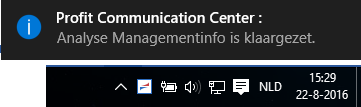
    Once the analysis is ready, a notification appears on your screen. This only happens if the PCC and your system have been configured correctly.

    1. Click on the notification to open the file locally in Excel.

      Dat_Bestand openen via Notificatie (AOL, WEB only)

    See also:

    • Check the configuration

    Open an analysis using Profit Windows

    To open an export file using Profit Windows:

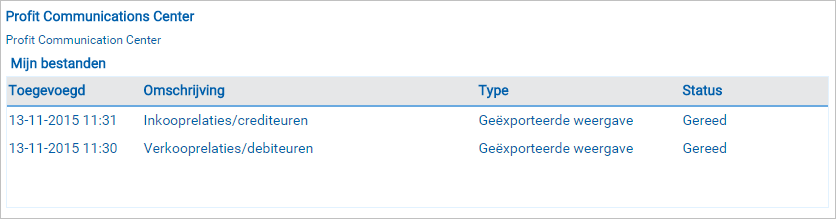
    1. Go to: General / Output / My files.
    2. Double-click on the file.
    3. Save the file to a local disk.
    4. Open the file in the locally installed version of Microsoft Excel.

    See also:

    • Save files (AFAS Online)

    Open an analysis using InSite

    To open an export file using InSite:

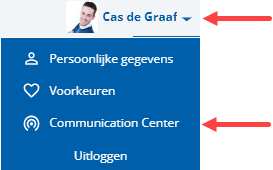
    1. Start InSite.
    2. Click on: Communication Center.

    3. Click on the export file.

      The file is saved to your hard disk and you open it in the locally installed version of Microsoft Excel.

      Exported files are removed from the My files view after 48 hours. You can remove files yourself by selecting General / Output / My files in Profit Windows.

    If you cannot open the analysis or if messages appear, please refer to the Preparations and Frequently asked questions topics.
Directly to

  1. View an analysis in Microsoft Excel
  2. Configure analyses
  3. Check support of Microsoft Office
  4. Install the Profit Communication Center
  5. Authorisation
  6. Record security settings for analyses in Microsoft Excel
  7. Security settings in Office 365
  8. View an analysis
  9. View an analysis from a view
  10. View an analysis using the Profit Communication Center in InSite
  11. View an analysis on Apple Mac