Generate a document using the Document generator

You generate a merged document using the Document generator. The merged document is not saved in the dossier.

You use this option, for example for an address change message to your contacts, a general discount offer for all customers, an invitation to a company party, etc.

This merges information from Profit with the document layout you select. The result is one merge file that contains all generated documents. This method is sometimes also called 'merge' or 'mail merge'.
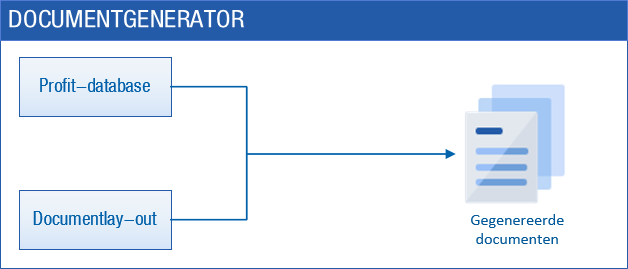
If you want to generate the letters in a specific order (for example, sorted by last name), first specify the sorting in the document layout. Under certain conditions you can use a deviating page format.

To generate a document:

  1. Go to:
    • General / Output / Document (all document layouts)
    • CRM / Output / Document
    • Financial / Output / Document
    • Fiscal / Output / Document
    • HR / Output / HR document
    • Order Management / Output / Report
    • Start menu / Projects / Output / Document

     Profit displays all document layouts except the ones that are blocked.

  2. Double-click on the document.
  3. Use a filter to select the appropriate addressees.
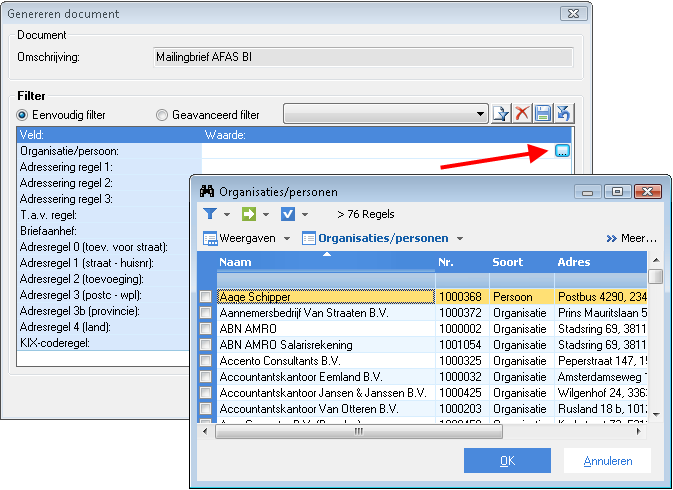
  4. Click on: OK. 
  5. The next steps depend on the situation:

    File is opened automatically

    Profit always checks first if the file can be opened automatically on your workstation.

    Conditions:

    • You have installed the PCC and linked it to the environment.
    • You have installed a supported version of Word on your workstation.

    If Profit is installed locally, the file is always opened immediately.

    Open a file manually using InSite

    To open a file using InSite:

    1. Start InSite.
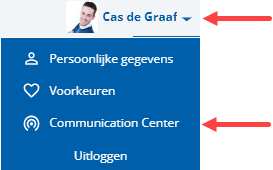
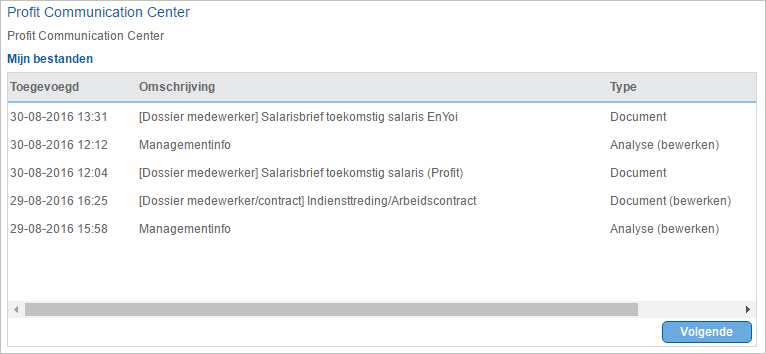
    2. Click on: Communication Center.

    3. Click on the file.

      You can open many different types of files from this list. Always look at the indication in the Type column.

      The file is saved to your hard disk and you open it in your locally installed version of Microsoft Office.

      Exported files are removed from the My files view after 48 hours. You can remove files yourself by selecting General / Output / My files in Profit Windows.

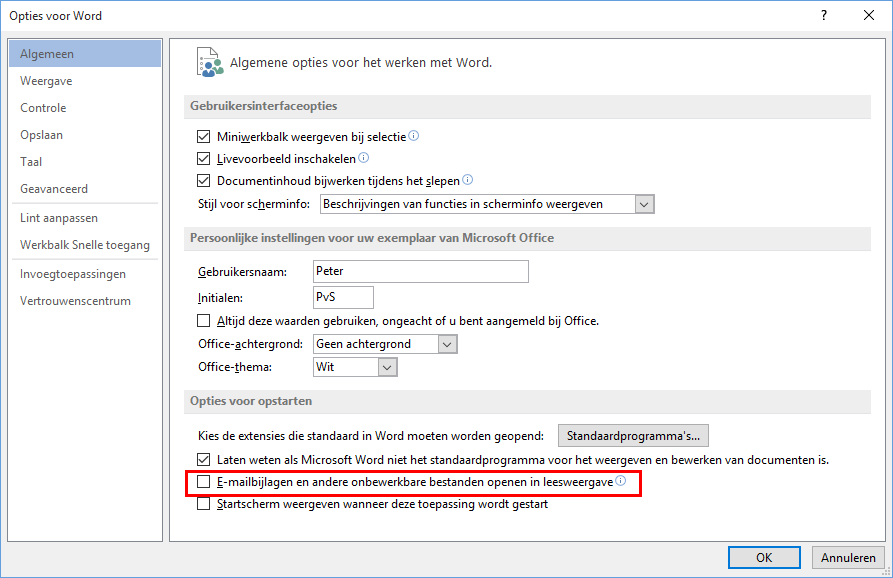
    When you open a Word file manually using My files, the E-mailbijlagen en andere onbewerkbare bestanden openen in leesweergave check box must be deselected. Open Word, go to Bestand / Opties and check this setting.

    Open a file manually using Profit Windows

    To open a file using Profit Windows:

    1. Go to:General / Output / My files.
    2. Double-click on the file.
    3. Save the file to a local disk.
    4. Open the file in your locally installed version of Microsoft Office.

    See also:

    • Save files (AFAS Online)

    When you open a Word file manually using My files, the E-mailbijlagen en andere onbewerkbare bestanden openen in leesweergave check box must be deselected. Open Word, go to Bestand / Opties and check this setting.

    The file name of the generated document always begins with the word Output. For example, if you create merge letters based on 'Qlik Seminar', the file will be named 'Output Qlik Seminar'.
Directly to

  1. Documents
  2. Configure documents
  3. AFAS Customer Portal
  4. Check support for Microsoft Word
  5. Install the PCC
  6. Generate a merged document using the Document generator